1 Deploy the MongoDB database
You can download the source code to build the Mongo DB image used in this guide from this Kumori github repository, project employee-management-app.
Note this process can be used for any application in a docker image.
To start, log in Axebow using your social account, then you will be forwarded to Axebow Home dashboard.
Go to the home page, enter the Run Service dashboard
1.1 Step 1: Basic info: name of the service and docker image
Set the repository that contains the docker image, the name and the tag that identifies the image to deploy.
- Registry URL
- select the github registry
- Image Name[:Tag]
-
kumori-systems/employee-service-application-db:1.0.0
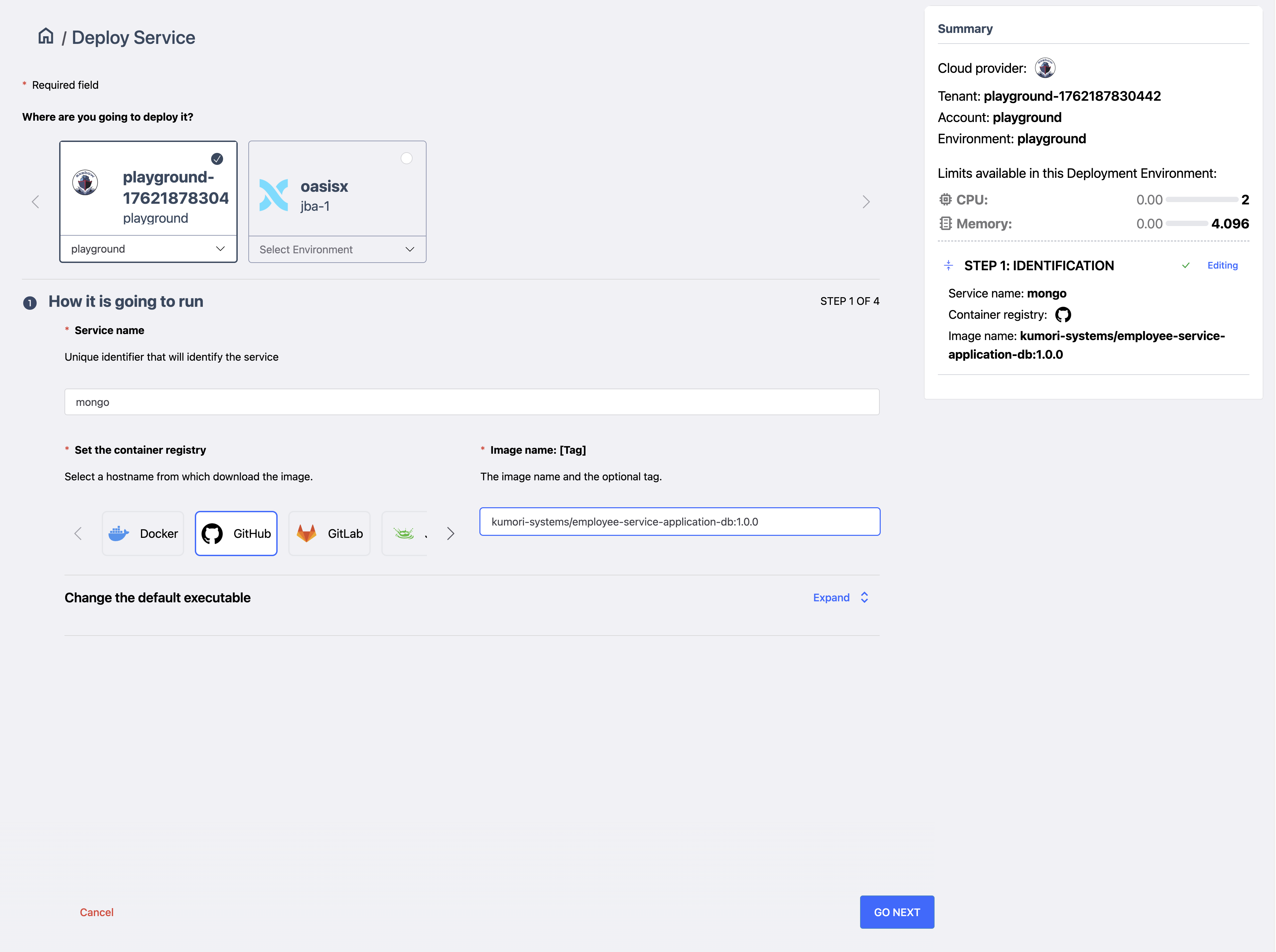
Click on Go Next.
1.2 Step 2: intensive resource needs (cpu/memory)
We are going to deploy our service in the playground, as it is selected we do not need to change it.
Now we need to declare how much cpu and memory the component we are deploying will need to run. As we are deploying in the playground with limited resources, we select just \(0,5\) vCPUs and \(1\)G of memory.
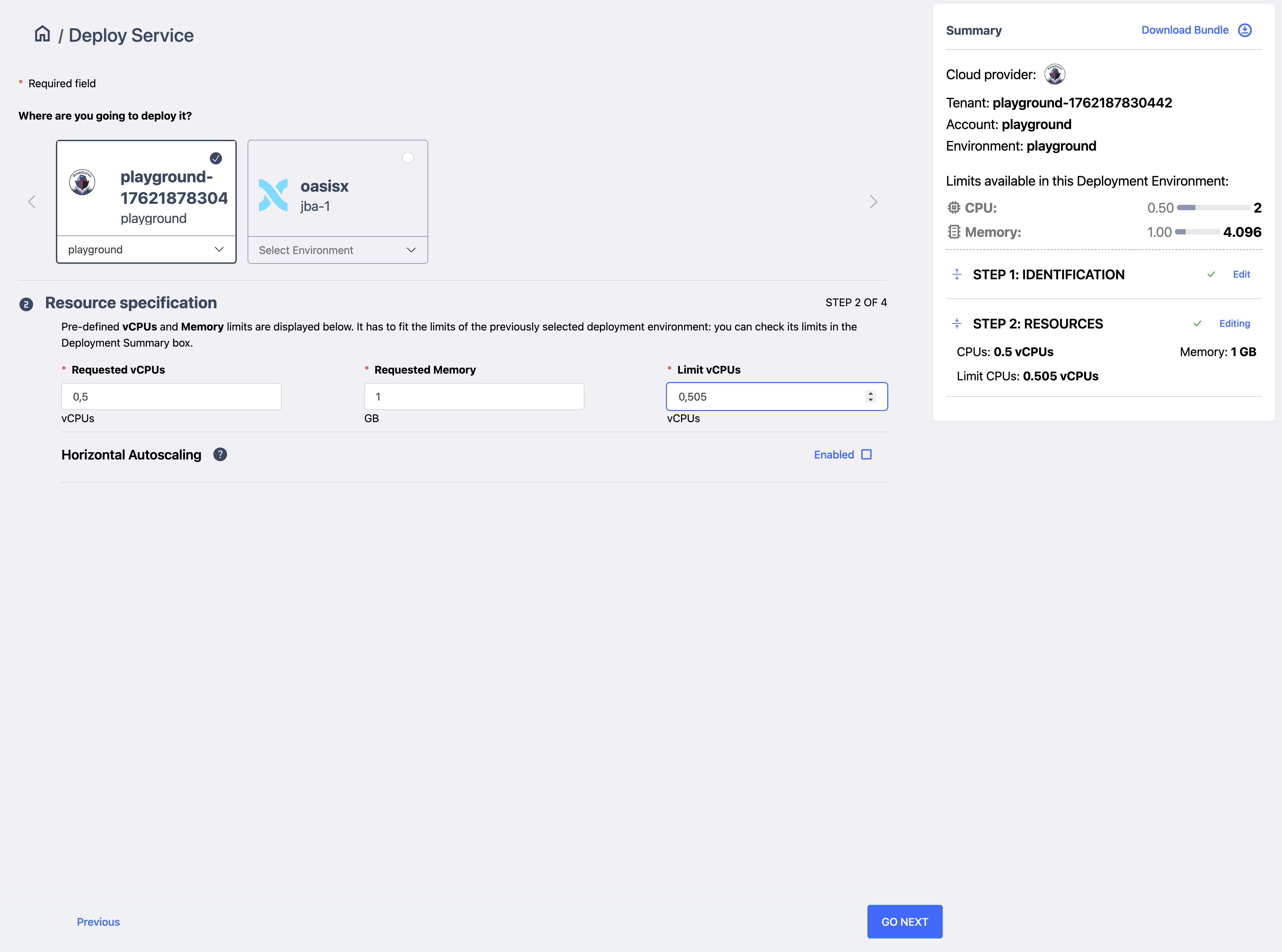
Click on Go Next.
1.3 Step 3: Define its channels
You are now placed within the mesh section of the service creation flow, where you can define channels for the service you are defining and indicating the platform to create links to other existing services (of the same tenant) when the service we are building gets deployed.
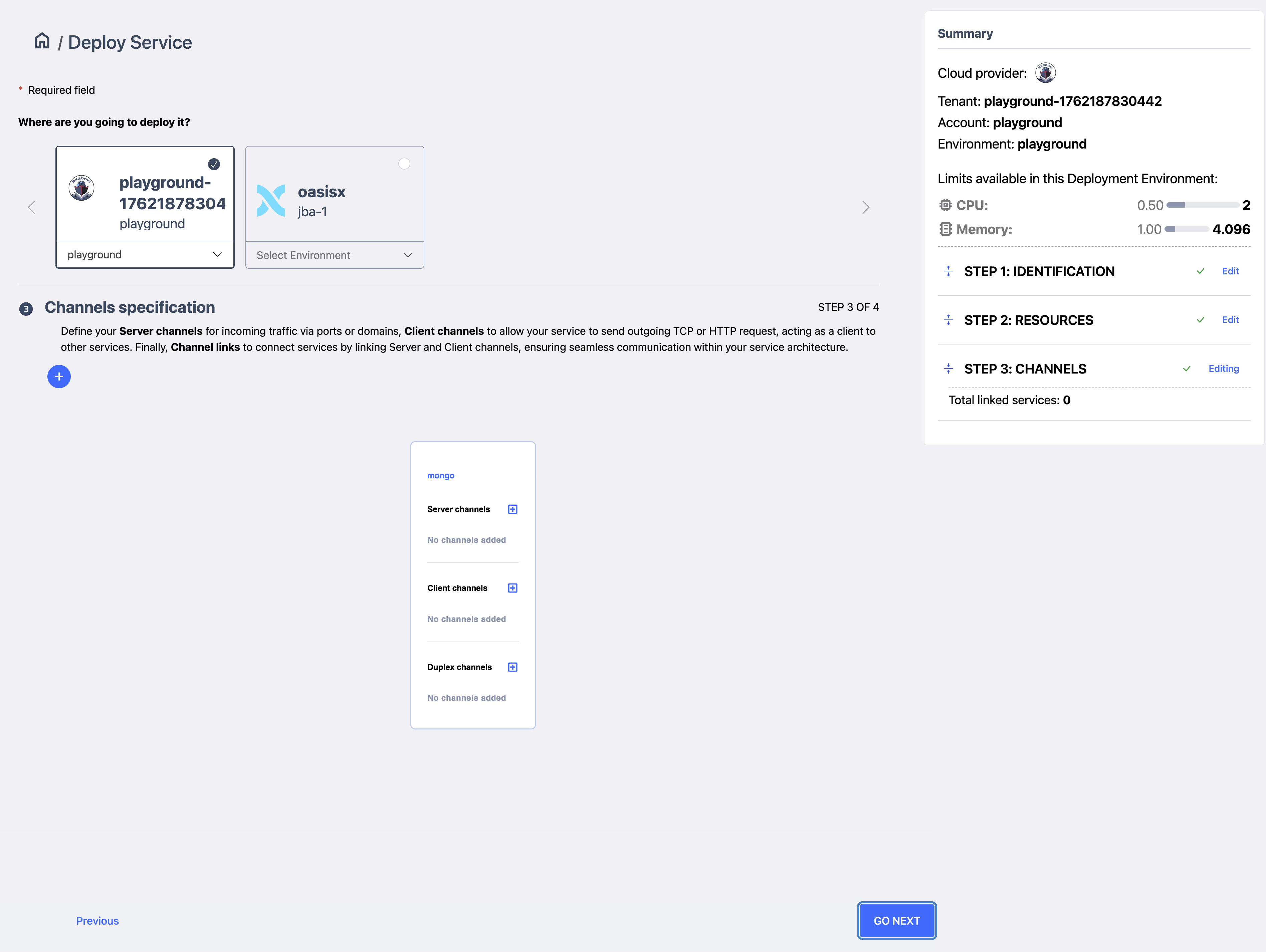
In this example we are just going to define the channels we need for the database. Our mongo deployment is simple, thus we will only need one Server Channel to be defined so that other services can connect to the database when linked.
Set the channel name. Then the container port (the example database exposes the port 27017).
We may want to access te database later on via some client app running on our desktop. As services deployed are isolated from the public network, we need to explicitly expose one of the server channels created via an inbound builtin service.
To do so in this flow, we need to activate the Gateway switch, at which point we are asked to select the flavor of the inbound (TCP/HTTPS). We select TCP (what mongo needs), at which point we are asked to select which port resource (where a reservation for the port number on the deployment environment, a managed and scarce resource) must be used. If the tenant has a port resource already available, it is presented. In any case, we are given the opportunity to create it now if needed aa 
We are going to create the port resource, as we have none already registered. Afetr clicking Create new port we are presented with a form where we can enter both the registration name (mongoport in our example), and the port number.
The set of port numbers available is determined by axebow, thus a selector is offered with those ports still available for registration.
As we are deploying on the playground (an isolated, although shared infrastructure) some other user may have already taken some of the available ports, thus they will not be shown. :::v
Click on Go Next
1.4 Step 4: set up the configuration
After clicking on the Next button, we reach the configuration pannel.
By default, deployed services are private what means they cannot be accessed from the Internet, only other services deployed in the same environment can connect to privete services.
So, for example, to connect a database manager like DBeaver from your local host to the database service (from the Internet), first you must reserve or create a resource port in Axebow. In the Resources section:
Click on Choose a resource button. Then set the resource type to Port.

First time, there isn’t any port and the Port selector is empty (as you can see in the previous image), in that case click on create resource.

Click on "Register a new port" button. Set the port resource name that will identify the port resource inside the tenant. Finally click on close dialog.

Then, select the port you created in the previous step.

You can set up a root user to manage the database. In this context, it is a best practice to create a Secret resource to store the value of the root user password.
Click on Choose a resource button. Then set the resource type to Secret.

First time, there isn’t any secret and the Secret selector is empty (as you can see in the previous image), in that case click on create resource.
Click on "Register a new secret" button. Set the secret resource name (
dbrootpassword) that will identify the secret resource inside the tenant. Set the database user password as secret value (admin1234). Click on close dialog.
Select the secret you created in the previous step.

Now, in the Configuration parameters section, create the environment variables the database needs. As said, inspect the Dockerfile to know the database variables any container needs.
For each environment variable, click on New configuration param button. Set the environment variable name. Select the environment variable type. Then, set the environment variable value.
To deploy the Mongo database service of this example, create the following environment variables:
- NODE_ENV
-
Type: String; Value:
development - MONGO_INITDB_ROOT_USERNAME
-
Type: String; Value:
admin - MONGO_INITDB_ROOT_PASSWORD
-
Type: Secret; Value:
dbrootpassword(password valueadmin1234was set at secret registering time). - image
-
deploy-service-database.03.08.png[]
Click on Next.

After the deployment is complete, the database service card becomes green.

Congratulations, you successfully deployed a database service on Axebow in just a few minutes.